how to re-run workflows when some samples fail?

I have a fairly simple workflow with 2 tasks. The second task depends on the output produced by the first. If I look at the output tab on the workspace workflow tab I see the output is configured correctly
As a test, I ran it on 10 samples, 2 failed on the first task because there was not enough memory. I selected the original data set, set the runtime to use more memory and re-ran everything
"use call caching" was on for all submissions
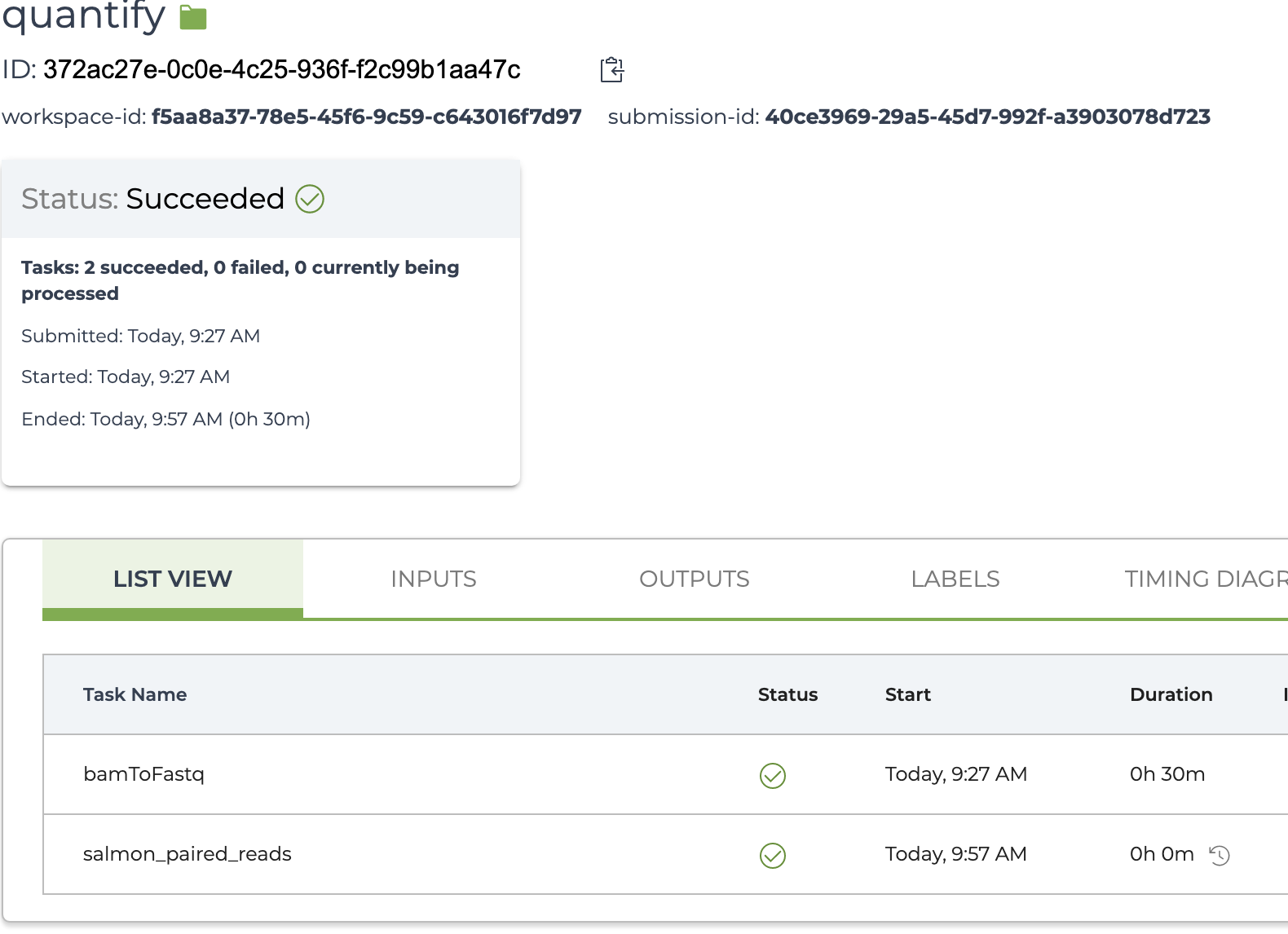
Using the job manager this is what I see for one of the samples that completed successfully durring the first submission
Notice the duration of the second task is zero. This is what I expected. the result was calculated correctly in the first submission.
Notice that first task has a duration of 30 min. This was unexpected. The result of this task was populated to the sample table and completed successfully during the first submission
workflow quantify {
    String sampleId
    File inputBam
    File refIndexTarGz

    call bamToFastq.bamToFastq {
        input:
        inputBam=inputBam,
        sampleName=sampleId
    }

    call salmonPairedReadQuantTask.salmon_paired_reads {
        input:
        sampleId=sampleId,
        refIndexTarGz=refIndexTarGz,
        leftReads=bamToFastq.firstEndFastq,
        rightReads=bamToFastq.secondEndFastq,

        # see salmonPairedReadQuantTask.wd for more information aobut
        # choosing parameter values
        outDir="salmon.out",
        dockerImg='quay.io/biocontainers/salmon:1.4.0--hf69c8f4_0',
        memoryGb=64,
        diskSpaceGb=80,
        runTimeCpu=8,
        runTimePreemptible=3
    }
}
Is this a bug or expected behavior?
Kind regards
Andy
p.s. When I ran the workflow for the first time, I aborted it after about 30 mins. I realized one of the inputs needed by the second task was configured to use a google bucket it probably did not have access to. It took a surprising amount of time for it to complete the abort request. I wonder if this had something to do with the unexpected behavior?
Comments
1 comment
Hi Andrew Davidson,
Sorry for the delayed response. If you believe that a task should have been call-cached, you can use the Call Cache Debug Wizard, which is a relatively new feature available in the Workflow Dashboard.
1. Go to the Job History page for your second submission and click on Workflow Dashboard under Links.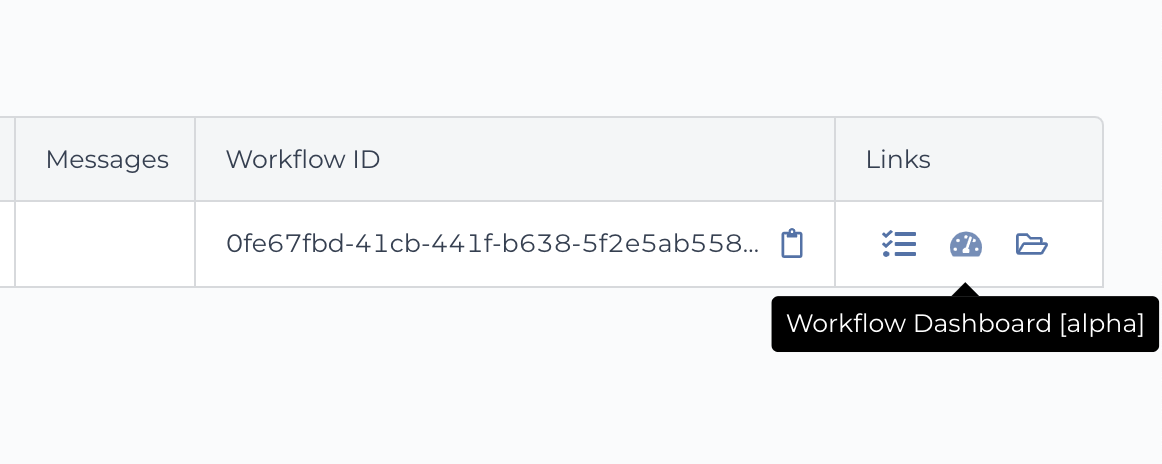
2. In the Workflow Dashboard, expand the task that you think should have been call-cached. It will probably say 'Cache Miss' under Call Caching Result. Click on the magnifying glass icon to open the Call Cache Debug Wizard.
3. In the prompt, enter the workflow ID of your first submission (or whichever one you wanted it to call cache from), select the appropriate task, and click Continue. The result should show what differences there were between the two runs.
Please let me know if you have any questions.
Best,
Samantha
Please sign in to leave a comment.